Peasy is organized around the way you work — buying, receiving, making, and selling. Everything you need is in the sidebar on the left side of your screen.
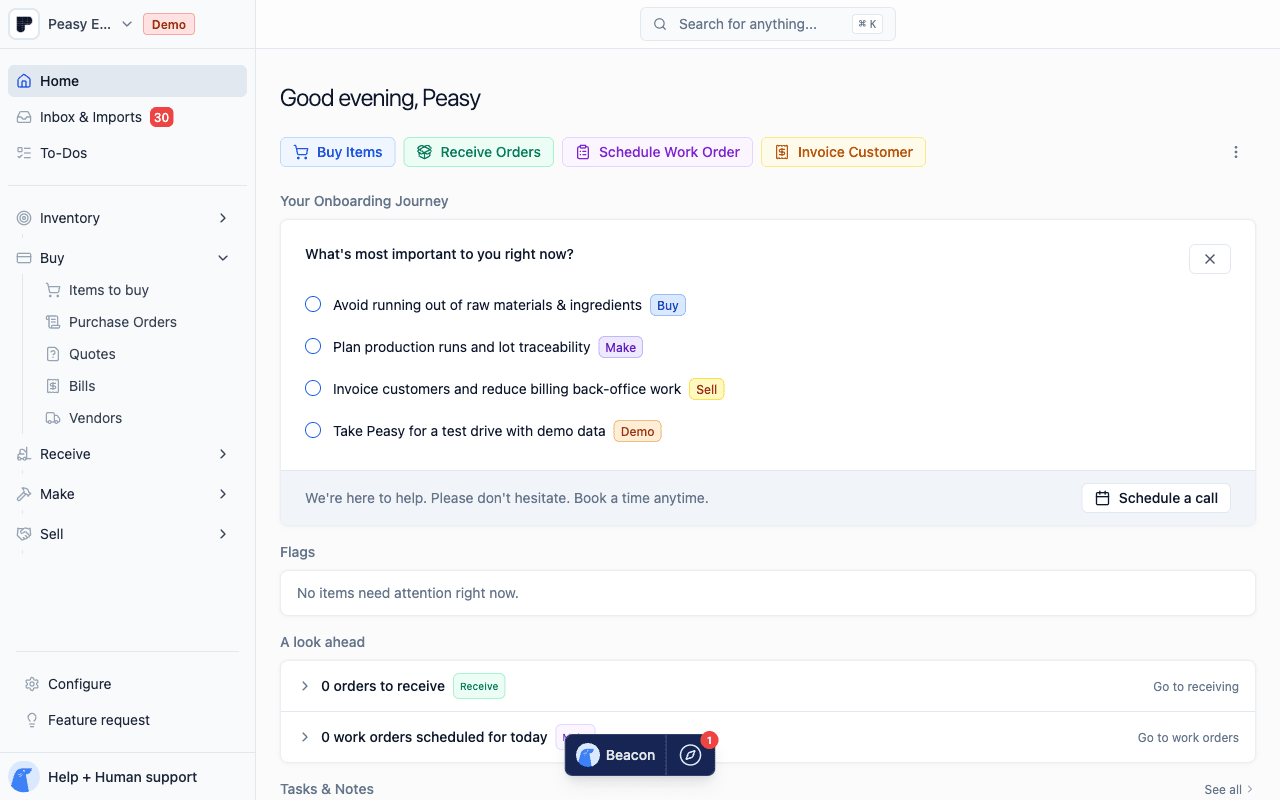
The Sidebar
The sidebar is your main way to get around. It's divided into five sections that match your workflow:
Inventory
Track what you have on hand.
- Count — Do inventory counts and see what needs counting
- History — View a log of all inventory changes
- Transfer — Move items between locations quickly
- Transfer Orders — Create formal transfer orders between locations
Buy
Manage your purchasing.
- Items — The items you buy from vendors
- Vendors — Your suppliers and their contact info
- Purchase Orders — Orders you send to vendors
- Bills — Invoices you've received from vendors
Receive
Track incoming orders.
- Pending — Orders on their way that haven't arrived yet
- Received — Orders that have been checked in
Make
Production and assembly (if you make products).
- Templates — Recipes or assembly instructions for things you produce
- Work Orders — Scheduled production runs
Sell
Manage your sales.
- Customers — Your customer list
- Orders — Sales orders and invoices
- Catalog — Your product catalog that customers can browse
Sidebar Announcements
Peasy may share updates in announcement cards near the bottom of the expanded sidebar. When more than one card is available, use the left and right arrows to browse them.
Click anywhere on a card to read the full announcement. The details show its image, when included, and a longer message. Use the announcement’s button to follow its link, or Got it to close details when there is no link. More to love opens Peasy’s What’s New page. Closing details permanently dismisses the card for your account.
Click the X on a card to dismiss it. Dismissal is permanent for your account across browsers and companies. Other people keep their own cards, and editing an announcement does not bring it back after you've dismissed it.
Red Badges
You'll notice small red numbers on some items in the sidebar. These are action badges — they tell you something needs your attention:
- A number on Count means items need to be counted
- A number on Items (under Buy) means you're running low and should reorder
- A number on Pending means orders are on their way
- A number on Bills means new bills have come in
- A number on Templates means some recipes have ingredient gaps
- A number on Work Orders means work orders are due
Think of these as your to-do list — they help you know what to focus on next.
Ask Anything
At the bottom of the sidebar is the Ask anything button. Click it — or press Cmd+K (Ctrl+K on Windows) — and it grows into a search and command panel in the bottom-left corner. You type at the bottom and results grow upward. Your navigation stays put behind it the whole time, and finishing an action closes the panel.
Smaller icon buttons sit next to Ask anything:
- A message icon is always available. Click it — or press Cmd+J (Ctrl+J on Windows) — to open the Beacon chat sidebar. It reopens your most recent conversation when you have a recent one, and starts a fresh chat when you don't. A red badge shows unread replies.
- A gear icon opens Configure settings.
- A Product tips compass appears when the page you're on has guided tours (see below).
A separate floating toolbar still appears at the bottom of the screen when you select rows in a table — that toolbar holds bulk actions for the current selection.
Quick Search (Cmd+K)
Press Cmd+K (or Ctrl+K on Windows) — or click Ask anything at the bottom of the sidebar — to open the command palette. From here you can:
- Search for anything — Items, vendors, customers, purchase orders, sales orders, and more
- Jump to any page — Type the page name to navigate instantly
- Create new records — Quickly create a customer, vendor, item, order, or work order
- Ask Beacon — Type a conversational question to hand it off to Beacon, which can also connect you with human support
When you ask a question that isn't a search or navigation, Beacon hands off to the chat panel so you can keep the conversation going there.
Help articles and guided tours live in Beacon's Help & Tours view rather than in command-palette search.
Home Page
Your home page is your daily dashboard. It shows:
- Ask anything — Send a question directly to a new Beacon conversation. Press Enter to send or Shift+Enter for another line.
- Getting Started or Journey — Setup guidance suited to where your company is in Peasy, until you dismiss it
- To-Dos — Buy, Make, Pending, due Tasks and Notes, Count, Import, Snoozed, and Resolved sections, followed by an A look ahead section for purchase orders due to arrive and work orders scheduled today
- Inbox — Unprocessed items like incoming emails or documents, when Inbox is enabled
To-Dos
Click To-Dos near the top of the sidebar to see the work that needs attention:
- Buy — Items running low, items needed for work orders, and items flagged to restock
- Make — Products you need to produce or production blockers to clear
- Pending — Items currently on order or in production
- Tasks and Notes — Open follow-ups from Tasks & Notes
- Count — Items due for an inventory count
- Snoozed — Queue items you've set aside for later
- Resolved — Items you've already handled
You can filter To-Dos by type to focus on what's most relevant, and snooze items you don't need to act on right now.
Product Tips (Compass Icon)
Many pages have built-in Product tips that walk you through what's there. When tips are available for the page you're on, a compass icon appears next to Ask anything at the bottom of the sidebar. A small badge on the icon shows how many page tours you haven't seen yet.
Click the compass to open the Product tips popover:
- Each tour is listed with a short description and a status icon — a check means you've already seen it, an empty circle means you haven't.
- Click a tour to launch it in place.
- Click Dismiss if you do not want the Product tips compass to appear anymore. This hides the compass across your devices. There is not a restore button in the app today.
Help & Support
Open Beacon from the message button at the bottom of the desktop sidebar, or press ?. On phones, use Home's Ask anything box for a direct AI question or the top-right ? button—available on Home and other pages—for support history, human help, and calls. From Beacon you can:
- Browse feature guides — Step-by-step walkthroughs of different parts of Peasy
- Schedule a video call — Book time with our team for a live walkthrough
- Chat with us — Open a Beacon chat to get help
By default, chats start with Beacon, Peasy's AI assistant, so you usually get an instant answer. On a brand-new chat you can choose how to start: Beacon for an instant chat, Human to talk to our team, or Book a call.
Beacon can explain Peasy workflows, answer questions about your Peasy data when you're signed in, and help with consumer packaged goods topics such as manufacturing, packaging, wholesale, and retail requirements. For questions that depend on current regulations or a specific retailer's rules, Beacon can research current sources when web research is available.
If you'd rather talk to a person, click Talk to a human instead under the conversation — our team is notified and replies right in the same chat. To go back to instant answers, click Want an instant answer? Switch to Beacon. You can switch each chat on its own, and the choice only affects that conversation. If you're chatting in the public Help Center without signing in, Talk to a human instead asks you to sign in first; your conversation comes with you, and our team picks it up there. If you need to create an account, finish setting it up, then return to the Help Center in the same browser tab so your conversation reaches our team.
Beacon's panel also includes a Help view with article search. After Beacon's first answer in a new chat, you may see labelled feedback buttons such as Helpful, thanks, Not helpful, and That's too bad so you can quickly tell Beacon whether the answer worked.
Account & Settings Menu
Click your company name at the top of the sidebar — the button with the company logo and a chevron — to open your account menu. From here you can:
- Configure — Jump to your business settings
- Switch themes — Choose Light, Dark, or System (System matches your device's light or dark setting)
- Log out — The Log out option at the bottom of the menu signs you out of Peasy
You can also log out from the command palette: press Cmd+K (Ctrl+K on Windows) and search for "Log out".
Good to Know
- The sidebar collapses to icons on smaller screens. Hover over icons to see what they are.
- On mobile, tap the menu icon in the top left to open the sidebar.
- On mobile, Cmd/Ctrl+K opens the navigation sheet first and then Ask anything inside it.
- On desktop, use the handle on the sidebar's right edge to collapse or expand it — click the > button, or drag the edge to resize the sidebar. Peasy remembers the width you set.
Related
- Getting Started Checklist — Follow the built-in setup guide
- Welcome to Peasy — Overview of what Peasy does